Login Page
Overview
The Login page provides authentication functionality for SlugBase, supporting both local email/password authentication and OIDC (OpenID Connect) provider authentication. It serves as the entry point for authenticated users.
Route
- Path:
/login - Authentication: Not required (public access)
- Redirect: Authenticated users are redirected to dashboard
Features
Local Authentication
- Email/Password Login: Traditional authentication method
- Form Validation: Email format and required field validation
- Error Handling: User-friendly error messages
- Password Visibility: Secure password input
OIDC Authentication
- Multiple Providers: Support for multiple OIDC providers
- Provider Buttons: Individual login buttons per provider
- Dynamic Loading: Providers loaded from backend configuration
- Seamless Redirect: Direct redirect to provider authentication
Password Recovery
- Forgot Password Link: Link to password reset page
- Recovery Flow: Integrated with password reset system
User Interface
Layout
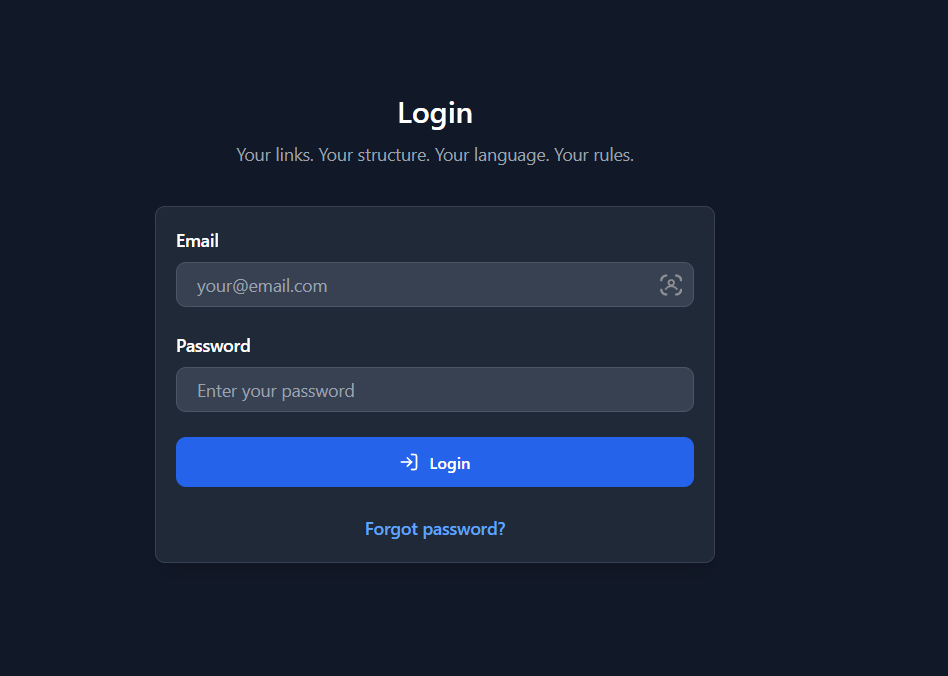
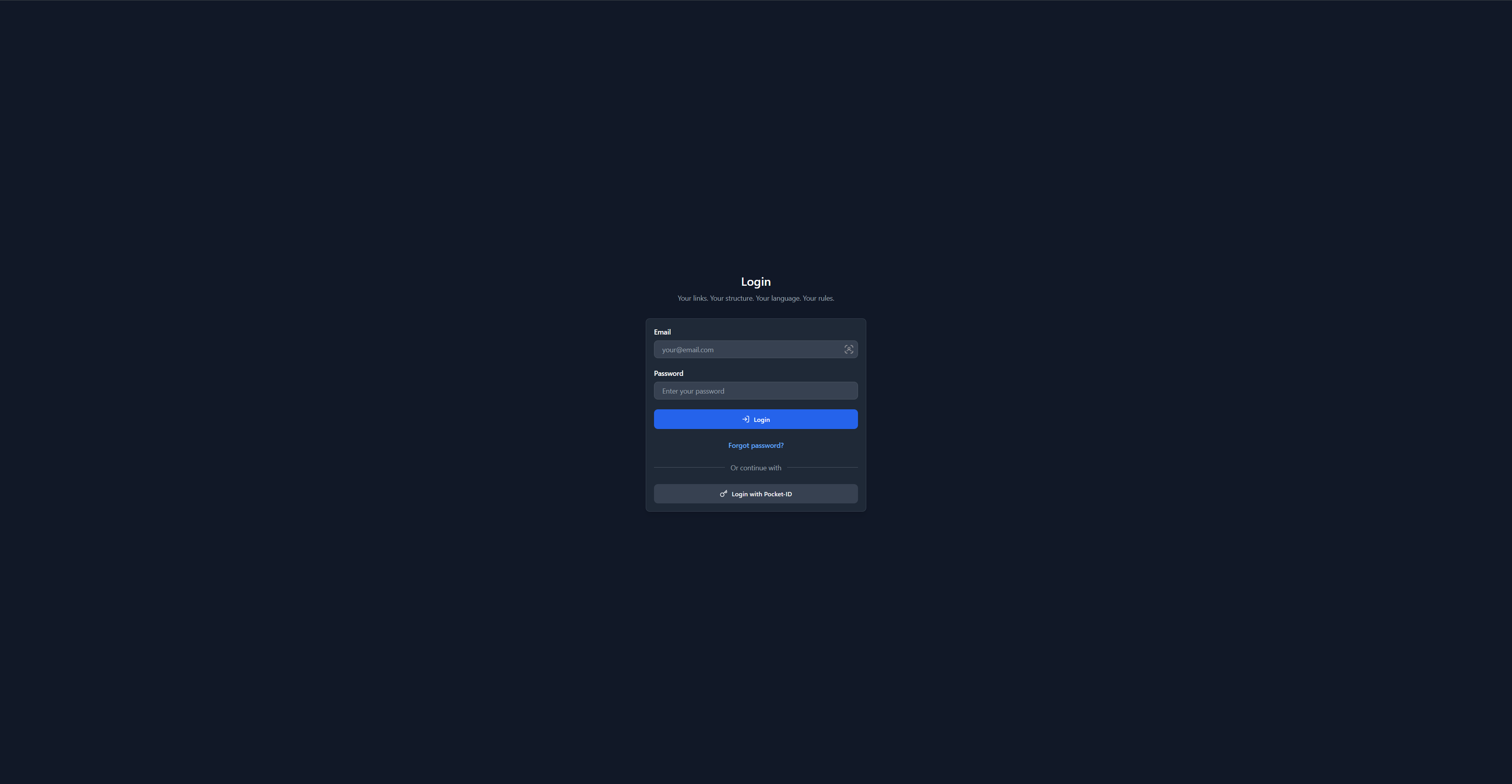
- Centered Form: Clean, centered login form
- Card Design: White/dark card with rounded corners and shadow
- Responsive: Works on all screen sizes
- Hero Section: App name and tagline at top
Form Structure
-
Header Section
- Page title ("Login")
- App tagline
-
Local Authentication Form
- Email input field
- Password input field
- Error message display (if applicable)
- Login button
- Forgot password link
-
Divider (if OIDC providers exist)
- "Or continue with" separator
-
OIDC Provider Buttons
- Individual buttons per provider
- Provider key as button text (e.g., "Login with Google")
- Icon indicators
User Interactions
Local Login
- Enter email address
- Enter password
- Click "Login" button
- On success: Redirected to dashboard
- On error: Error message displayed
OIDC Login
- Click provider button (e.g., "Login with Google")
- Redirected to OIDC provider
- Authenticate with provider
- Redirected back to SlugBase
- Session established, redirected to dashboard
Password Recovery
- Click "Forgot password?" link
- Redirected to password reset page
- Follow password reset flow
Component Structure
<Login>
  <Container>
    <Header>
      <Title>
      <Tagline>
    </Header>
    <Login Card>
      <Local Auth Form>
        <Email Input>
        <Password Input>
        <Error Display>
        <Login Button>
        <Forgot Password Link>
      </Form>
      {providers.length > 0 && (
        <>
          <Divider>
          <OIDC Providers>
            {providers.map(provider => (
              <Provider Button>
            ))}
          </OIDC>
        </>
      )}
    </Card>
  </Container>
</Login>
API Integration
GET /auth/providers- Fetch configured OIDC providersPOST /auth/login- Authenticate with email/passwordGET /auth/:providerKey- Initiate OIDC authentication (redirect)
Authentication Flow
Local Authentication
- User submits email/password
- Frontend sends POST to
/auth/login - Backend validates credentials
- Backend creates session/JWT
- Frontend receives success response
- Frontend redirects to dashboard
OIDC Authentication
- User clicks provider button
- Frontend redirects to
/api/auth/:providerKey - Backend initiates OIDC flow
- Backend redirects to OIDC provider
- User authenticates with provider
- Provider redirects back to SlugBase callback
- Backend processes callback, creates session
- Backend redirects to dashboard
Error Handling
Login Errors
- Invalid Credentials: "Login failed" message
- Network Errors: Connection error messages
- Server Errors: Generic error message
- Validation Errors: Field-level validation feedback
OIDC Errors
- No Providers: Message if no OIDC providers configured
- Provider Errors: Handled by backend OIDC flow
- Missing Configuration: Graceful degradation
State Management
Loading States
- Providers Loading: Shows loading state while fetching providers
- Login Loading: Button disabled during authentication
- Auto-redirect: Authenticated users automatically redirected
Form State
- Email: User email input
- Password: User password input
- Error: Error message state
- Providers: List of OIDC providers
Security Features
Password Security
- Password input type (hidden)
- No password transmission in URL
- Secure session management
- CSRF protection
OIDC Security
- Secure redirect flow
- State parameter validation
- Token exchange security
- Session management
Styling
- Clean Design: Minimal, focused interface
- Dark Mode: Full dark/light mode support
- Responsive: Mobile-friendly layout
- Accessible: Proper labels and ARIA attributes
- Visual Feedback: Loading states and error messages
Related Components
Button- Styled button componentAuthContext- Authentication context provider
Related Pages
- Setup - Initial system setup (if not initialized)
- Password Reset - Password recovery
- Dashboard - Post-login destination
Technical Details
- Component File:
frontend/src/pages/Login.tsx - State Management: React hooks (
useState,useEffect) - Routing: React Router (
useNavigate) - API Client: Custom API client
- Authentication: Handled via AuthContext
i18n Keys Used
auth.*- All authentication-related stringsapp.tagline- Application taglinecommon.loading- Loading state text
Auto-redirect Behavior
- If Authenticated: Automatically redirected to dashboard
- If Not Initialized: Redirected to setup page
- On Success: Redirected to dashboard
- On Error: Stay on login page with error
Empty State Handling
No OIDC Providers
- Only local authentication form shown
- No divider or OIDC section
- Clean, simple interface
No Users
- System redirects to setup page
- Login page not accessible until initialized
User Experience
- Clear Interface: Simple, uncluttered design
- Quick Access: Fast login for returning users
- Provider Flexibility: Multiple authentication methods
- Error Clarity: Clear error messages
- Recovery Options: Easy password reset access
Accessibility
- Proper form labels
- Keyboard navigation support
- Screen reader friendly
- Focus management
- ARIA attributes where needed