Admin Page
Overview
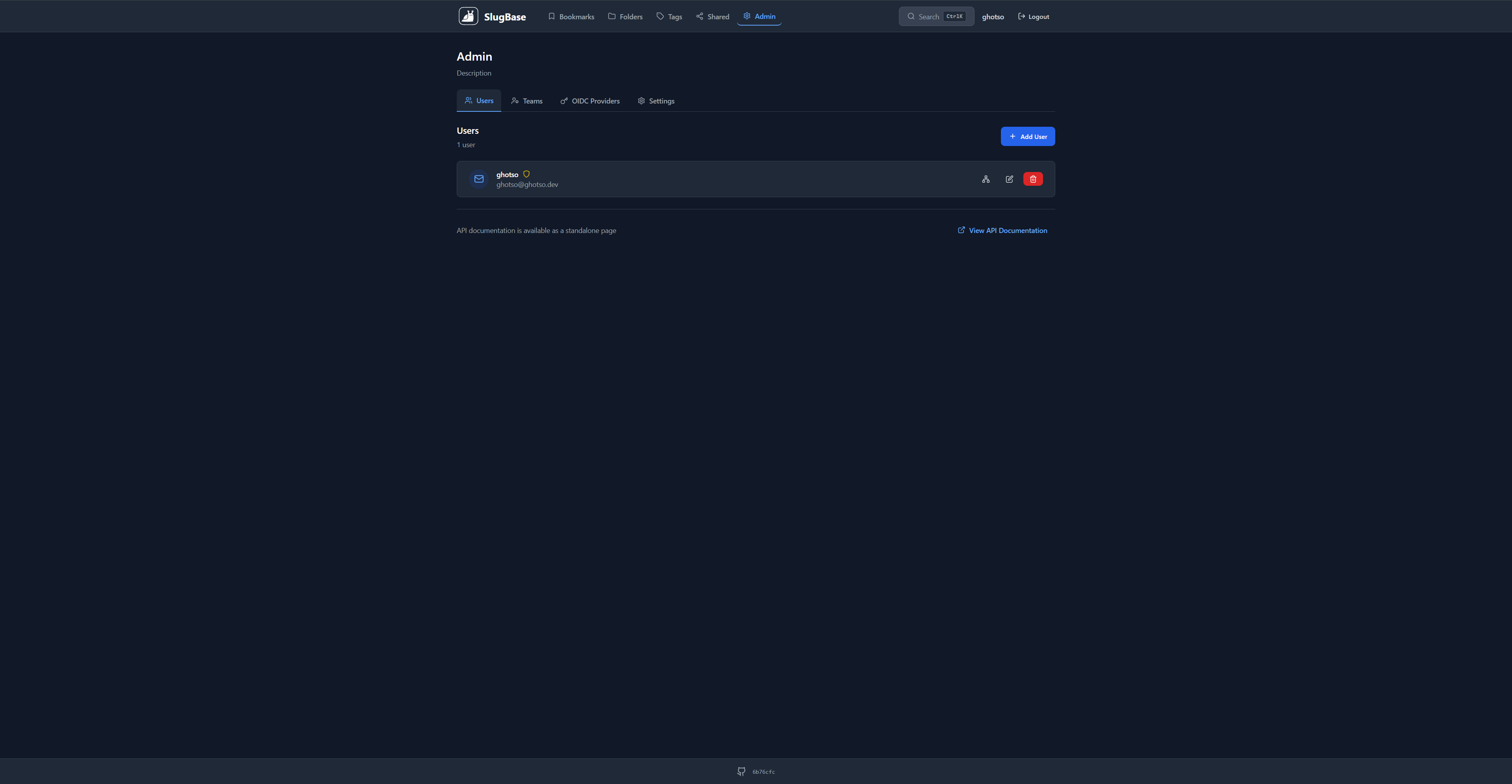
The Admin page provides administrative controls for managing users, teams, OIDC providers, and system settings. It's accessible only to users with admin privileges and features a tabbed interface for organizing different administrative functions.
Route
- Path:
/admin - Authentication: Required
- Authorization: Admin users only
- Access: Redirects to dashboard if user is not admin
Features
Tabbed Interface
The admin page uses a tabbed navigation system with five main sections:
- Users Tab - Manage system users
- Teams Tab - Manage teams and team memberships
- OIDC Providers Tab - Configure OIDC authentication providers
- Settings Tab - System-wide settings (e.g., SMTP configuration)
- AI Suggestions Tab - Configure AI-powered bookmark suggestions
Users Management
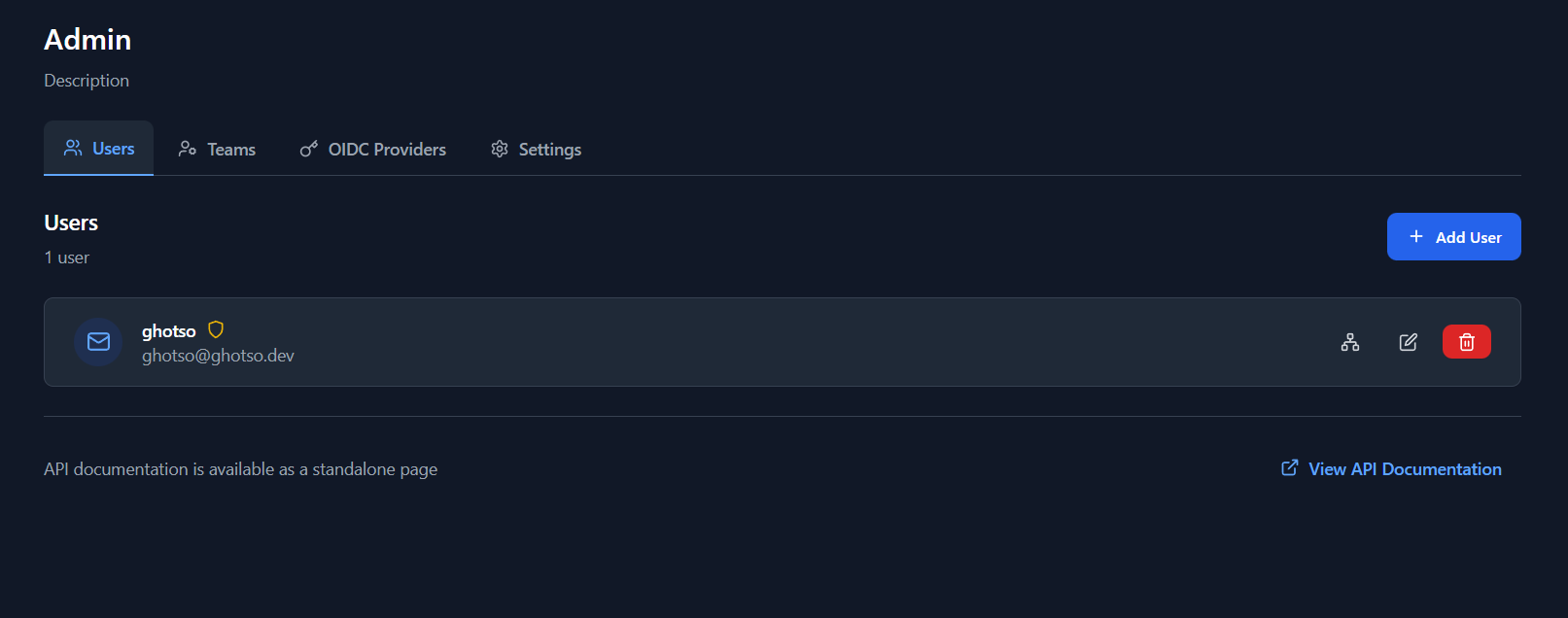
Comprehensive user management including:
- View Users: List all users in the system
- Create Users: Add new users manually
- Edit Users: Modify user details (name, email, role)
- Delete Users: Remove users from the system
- Manage Teams: Assign users to teams
- Role Management: Set user roles (admin/user)
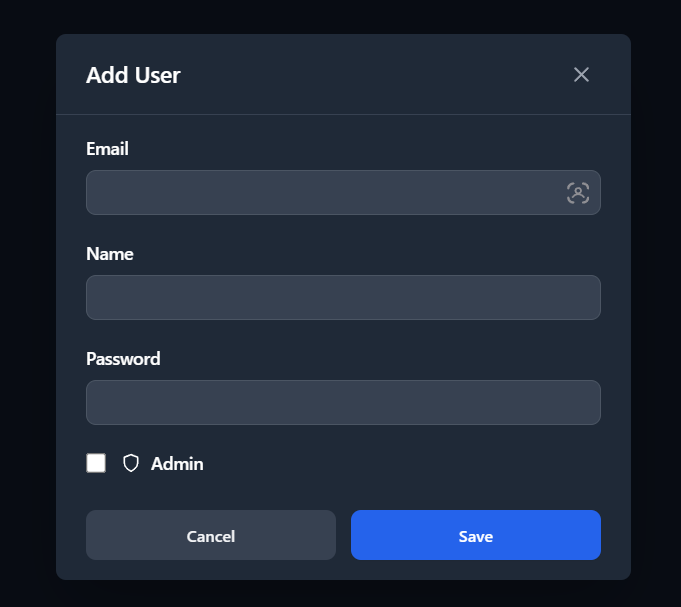
User Operations:
- Create new users with email/password
- Edit user information
- Delete users (with confirmation)
- Manage team memberships per user
- View user details
Teams Management
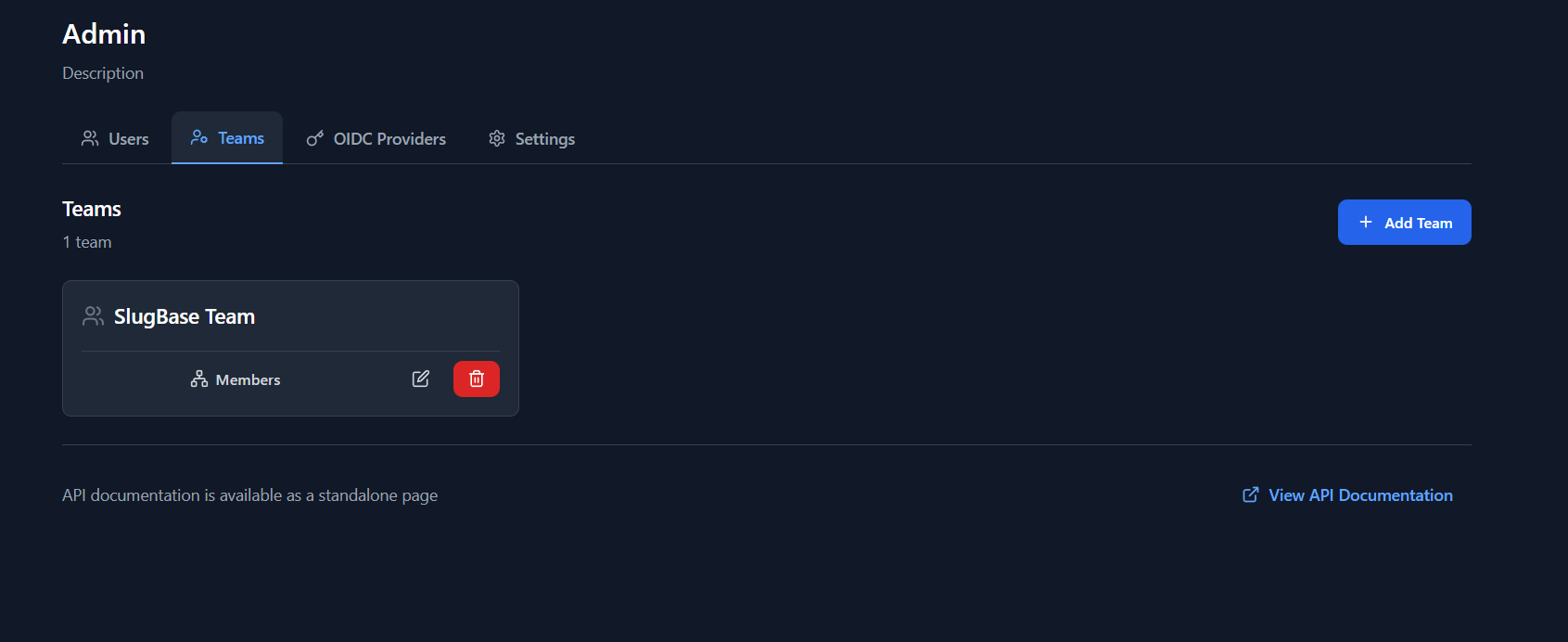
Team-based organization features:
- View Teams: List all teams
- Create Teams: Add new teams
- Edit Teams: Modify team details
- Delete Teams: Remove teams (with confirmation)
- Manage Members: Add/remove users from teams
- Team Descriptions: Optional team descriptions
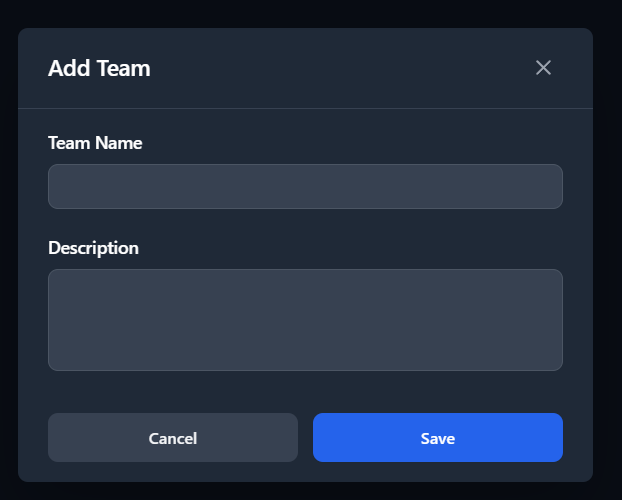
Team Operations:
- Create new teams
- Edit team information
- Delete teams
- Add/remove team members
- Search teams by name/description
OIDC Providers Management
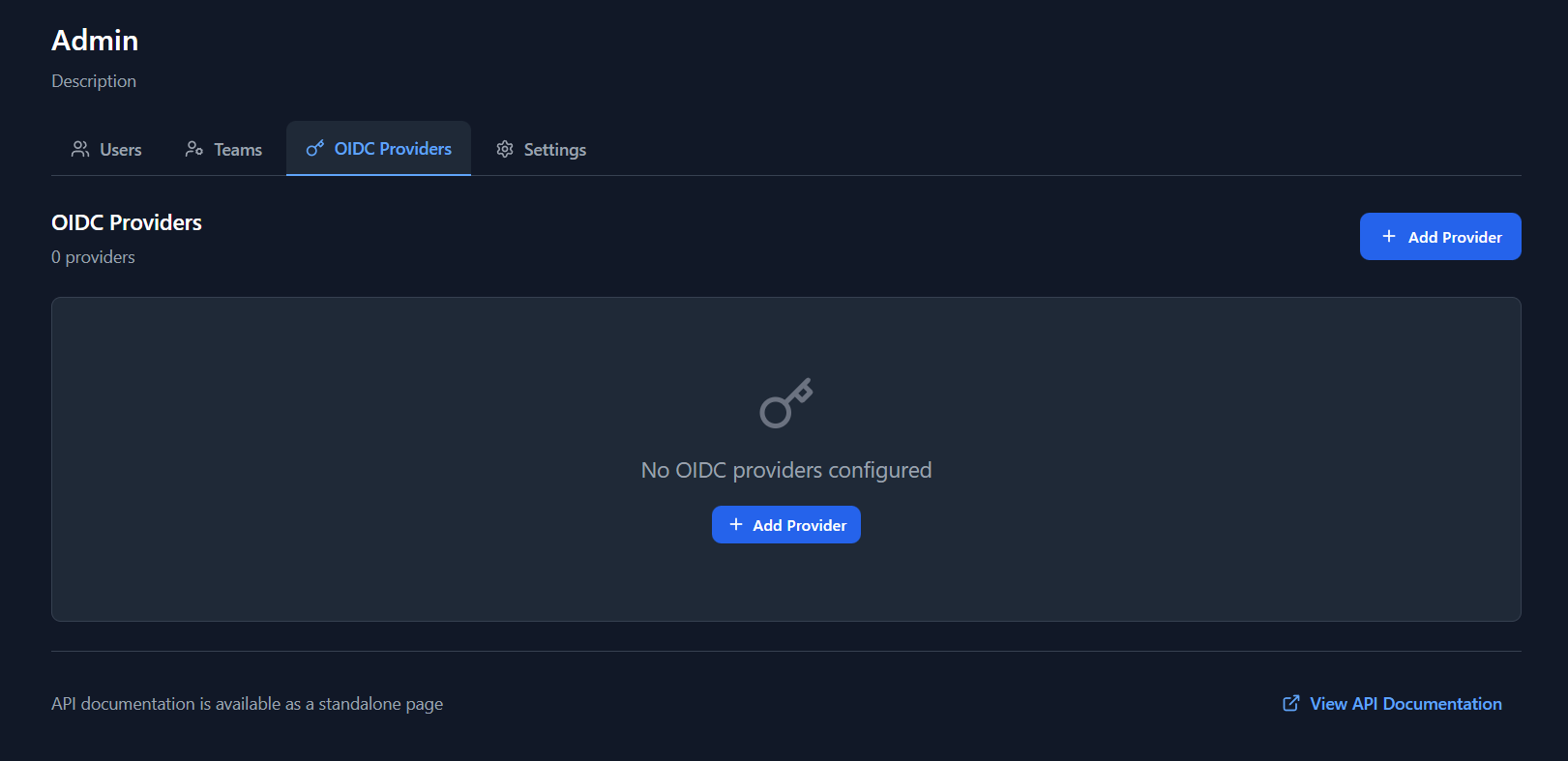
Authentication provider configuration:
- View Providers: List configured OIDC providers
- Add Providers: Configure new OIDC providers
- Edit Providers: Modify provider settings
- Delete Providers: Remove providers (with confirmation)
- Provider Settings:
- Provider key (unique identifier)
- Client ID
- Client Secret (encrypted storage)
- Issuer URL
- Scopes
- Auto-create users option
- Default role for new users
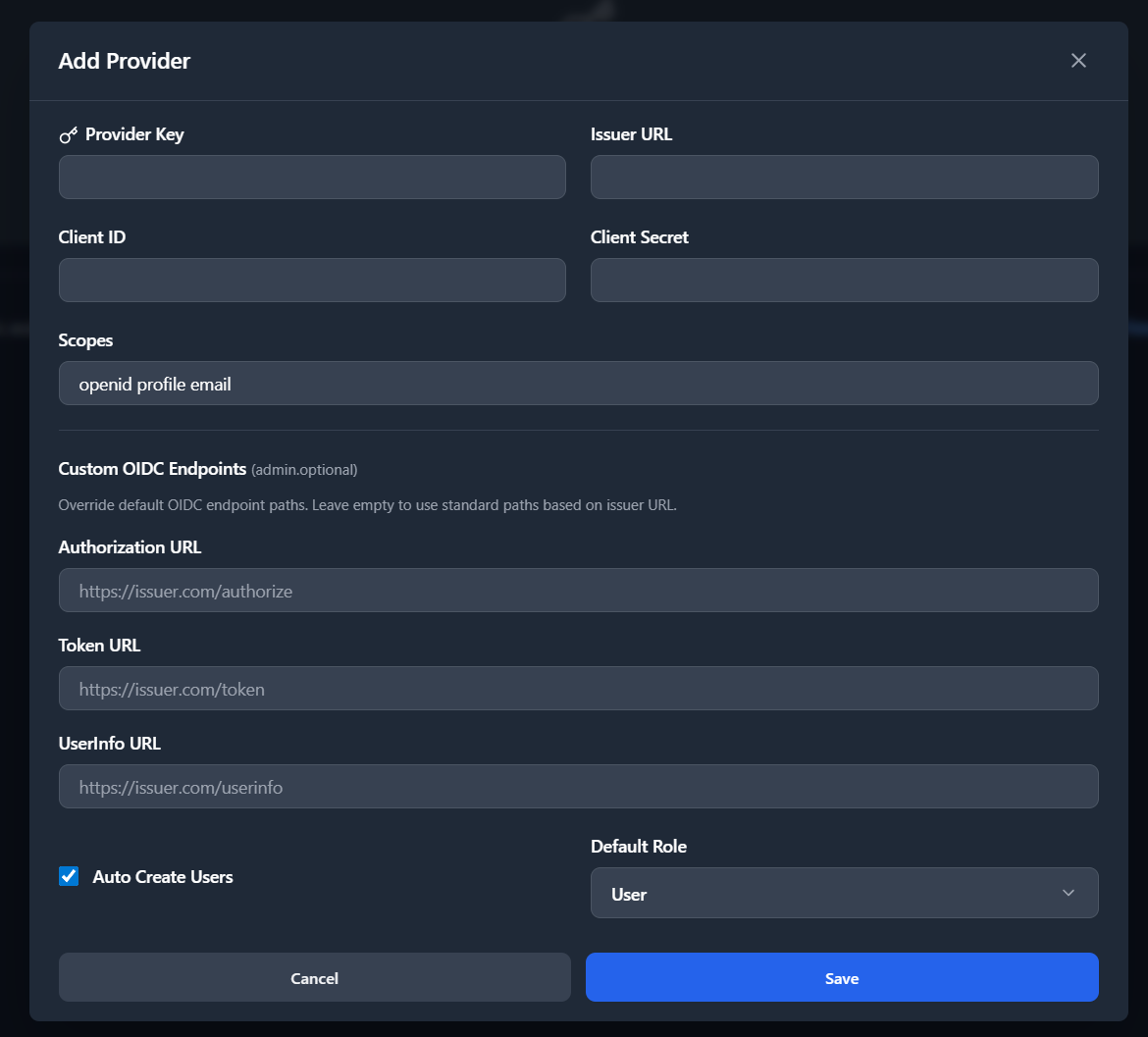
Provider Configuration:
- Support for multiple OIDC providers
- Secure secret storage (encrypted)
- Auto-user creation on first login
- Default role assignment
- Provider testing capabilities
Settings Management
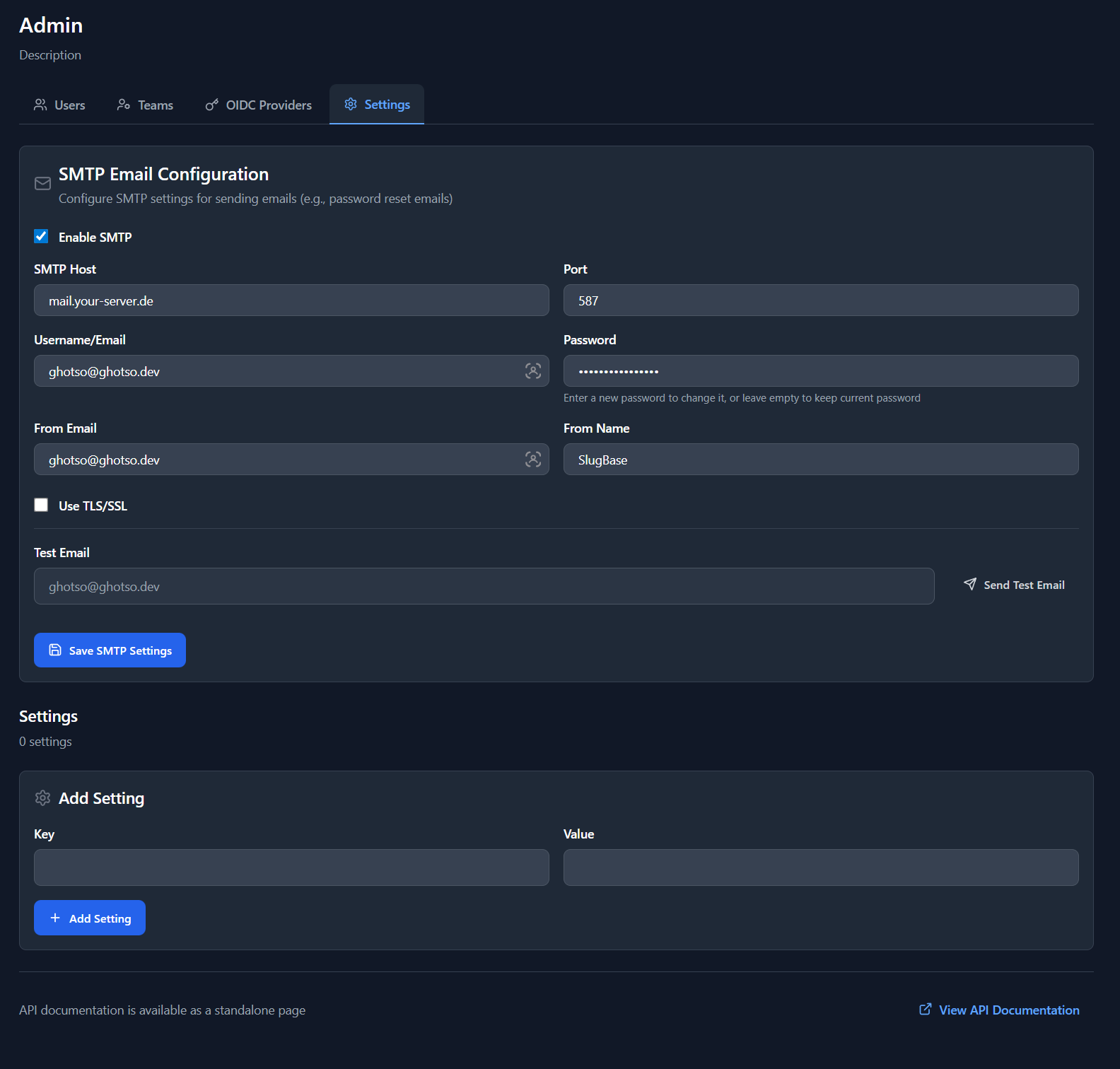
System-wide configuration:
- SMTP Configuration: Email server settings for password resets
- System Settings: Key-value configuration pairs
- Settings Include:
- SMTP enabled/disabled
- SMTP host, port, security
- SMTP credentials
- From email/name
- Test email functionality
Settings Operations:
- Configure SMTP for email functionality
- Test email configuration
- Manage system settings
- View/edit key-value pairs
AI Suggestions Management
Optional AI-powered suggestions for title, tags, and slug when creating bookmarks:
- Enable/Disable: Toggle AI suggestions on or off for the instance
- Provider: AI provider (default: OpenAI)
- API Key: OpenAI API key (masked in UI, encrypted at rest)
- Model: Model name (default: gpt-4o-mini)
When not configured, the feature is disabled and bookmark creation works normally. Users can disable AI suggestions in their profile even when enabled by admin.
AI Configuration:
- API key stored encrypted (same pattern as OIDC secrets)
- Leave API key blank to keep existing key when updating other settings
- Get API key from platform.openai.com
User Interactions
Accessing Admin Panel
- User must be authenticated
- User must have
is_admin: true - Navigate to
/adminroute - Non-admin users are redirected to dashboard
Managing Users
- Click "Users" tab
- View list of all users
- Click "Add User" to create new user
- Click edit icon to modify user
- Click delete icon to remove user (with confirmation)
- Click "Manage Teams" to assign teams to user
Managing Teams
- Click "Teams" tab
- View list of all teams
- Click "Add Team" to create new team
- Click edit icon to modify team
- Click delete icon to remove team (with confirmation)
- Click "Manage Members" to add/remove users
Managing OIDC Providers
- Click "OIDC Providers" tab
- View list of configured providers
- Click "Add Provider" to configure new provider
- Fill in provider details (key, client ID, secret, issuer, scopes)
- Set auto-create and default role options
- Save provider configuration
Managing Settings
- Click "Settings" tab
- Configure SMTP settings (optional, for password resets)
- Test email configuration
- Manage system settings key-value pairs
Managing AI Settings
- Click "AI Suggestions" tab
- Toggle "Enable AI suggestions" on or off
- Enter OpenAI API key (get from platform.openai.com)
- Optionally set model (default: gpt-4o-mini)
- Click "Save"
Component Structure
<Admin>
  <Header>
    <Title>
    <Description>
  </Header>
  <Tabs>
    <Users Tab>
    <Teams Tab>
    <OIDC Tab>
    <Settings Tab>
    <AI Tab>
  </Tabs>
  <Tab Content>
    {activeTab === 'users' && <AdminUsers />}
    {activeTab === 'teams' && <AdminTeams />}
    {activeTab === 'oidc' && <AdminOIDCProviders />}
    {activeTab === 'settings' && <AdminSettings />}
    {activeTab === 'ai' && <AdminAI />}
  </Tab Content>
  <API Docs Link>
</Admin>
Sub-Components
AdminUsers
- User list with search
- User creation/edit modals
- Team management modal
- User deletion with confirmation
AdminTeams
- Team list with search
- Team creation/edit modals
- Member management modal
- Team deletion with confirmation
AdminOIDCProviders
- Provider list
- Provider creation/edit modal
- Provider deletion with confirmation
- Secure secret handling
AdminSettings
- SMTP configuration form
- Test email functionality
- System settings key-value editor
AdminAI
- AI enable/disable toggle
- Provider and model configuration
- API key input (masked when set)
API Integration
Users
GET /admin/users- List all usersPOST /admin/users- Create userPUT /admin/users/:id- Update userDELETE /admin/users/:id- Delete userGET /admin/users/:id/teams- Get user teamsPUT /admin/users/:id/teams- Update user teams
Teams
GET /admin/teams- List all teamsPOST /admin/teams- Create teamPUT /admin/teams/:id- Update teamDELETE /admin/teams/:id- Delete teamGET /admin/teams/:id/members- Get team membersPUT /admin/teams/:id/members- Update team members
OIDC Providers
GET /admin/oidc-providers- List providersPOST /admin/oidc-providers- Create providerPUT /admin/oidc-providers/:id- Update providerDELETE /admin/oidc-providers/:id- Delete provider
Settings
GET /admin/settings- Get settingsPOST /admin/settings- Create/update settingDELETE /admin/settings/:key- Delete settingPOST /admin/settings/smtp- Save SMTP configPOST /admin/settings/smtp/test- Test SMTP
AI Settings
GET /admin/settings/ai- Get AI config (API key masked)POST /admin/settings/ai- Save AI config (encrypts API key)
Security Considerations
Access Control
- Route-level protection (redirects non-admins)
- Component-level checks
- API-level authorization (backend validates admin status)
Data Protection
- OIDC secrets encrypted at rest
- Password hashing (never stored in plain text)
- Secure session management
- CSRF protection
Audit Trail
- User actions logged (where applicable)
- Deletion confirmations required
- Sensitive operations require admin privileges
Related Pages
Technical Details
- Component File:
frontend/src/pages/Admin.tsx - Sub-Components: Located in
frontend/src/components/admin/ - State Management: React hooks (
useState) - Tab Management: Local state for active tab
- Authorization: Protected route component
i18n Keys Used
admin.*- All admin-related stringscommon.*- Common UI strings
API Documentation Link
At the bottom of the admin page, a link to API documentation is provided:
- Opens in new tab
- Interactive Swagger/OpenAPI interface
- Complete API reference
Best Practices
-
User Management:
- Verify user information before deletion
- Use confirmations for destructive actions
- Maintain audit logs
-
Team Management:
- Consider impact of team deletion on sharing
- Verify team memberships before changes
- Use descriptive team names
-
OIDC Providers:
- Test provider configuration before saving
- Keep secrets secure (encrypted storage)
- Document provider keys for reference
-
Settings:
- Test SMTP configuration before production use
- Backup settings before changes
- Document custom settings keys
-
AI Suggestions:
- Store API key securely (encrypted at rest)
- Feature is optional; bookmark creation never depends on AI
- Users can opt out in profile even when enabled
Error Handling
- Network errors display user-friendly messages
- Validation errors shown inline
- Server errors logged and displayed
- Confirmation dialogs prevent accidental actions
Performance Considerations
- Lazy loading of admin sub-components
- Efficient tab switching
- Search/filter functionality for large lists
- Pagination where applicable (future enhancement)