OIDC Provider Setup Guide
This guide explains how to configure OIDC (OpenID Connect) providers for SlugBase, including GitHub and Google Workspace.
Overview
SlugBase supports multiple OIDC providers for authentication. Once configured, users can log in using their GitHub or Google Workspace accounts instead of (or in addition to) email/password authentication.
Prerequisites
- Admin access to SlugBase
- Access to GitHub organization settings (for GitHub) or Google Cloud Console (for Google Workspace)
- Your SlugBase
BASE_URL(e.g.,http://192.168.178.42:3713orhttps://yourdomain.com)
Callback URL Format
All OIDC providers require a callback URL to be registered. The format is:
{BASE_URL}/api/auth/{provider_key}/callback
For example:
- If
BASE_URLishttp://192.168.178.42:3713andprovider_keyisgithub:- Callback URL:
http://192.168.178.42:3713/api/auth/github/callback
- Callback URL:
Setting Up GitHub OIDC
Step 1: Create OAuth App in GitHub
- Go to your GitHub organization or personal account
- Navigate to Settings → Developer settings → OAuth Apps
- Click New OAuth App
- Fill in the application details:
- Application name:
SlugBase(or your preferred name) - Homepage URL: Your SlugBase
BASE_URL(e.g.,http://192.168.178.42:3713) - Authorization callback URL:
{BASE_URL}/api/auth/github/callback- Example:
http://192.168.178.42:3713/api/auth/github/callback
- Example:
- Application name:
- Click Register application
- On the next page, you'll see:
- Client ID: Copy this value
- Client secret: Click Generate a new client secret, then copy the secret immediately (you won't be able to see it again)
Step 2: Configure in SlugBase Admin Panel
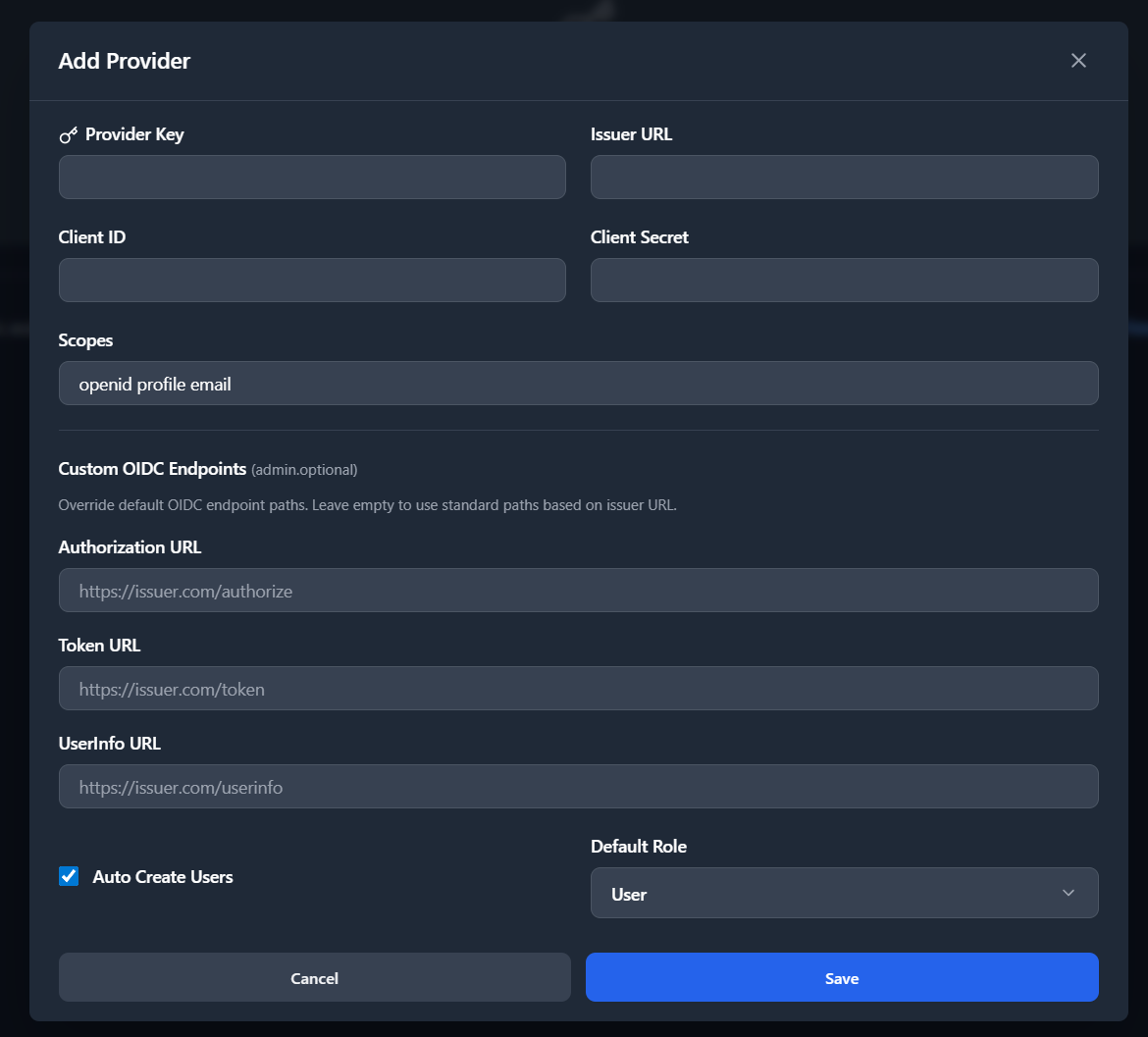
Important: GitHub's OAuth implementation is not fully OIDC-compliant. SlugBase includes special handling for GitHub, but you need to configure it with GitHub's OAuth endpoints rather than OIDC endpoints.
-
Log in to SlugBase as an admin
-
Navigate to Admin → OIDC Providers tab
-
Click Add Provider
-
Fill in the form with GitHub details:
- Provider Key:
github(must be lowercase, no spaces) - Client ID: The Client ID from GitHub
- Client Secret: The Client Secret from GitHub
- Issuer URL:
https://github.com - Authorization URL:
https://github.com/login/oauth/authorize - Token URL:
https://github.com/login/oauth/access_token - UserInfo URL:
https://api.github.com/user - Scopes:
user:email read:user - Auto-create users: Checked (recommended)
- Default role:
user(oradminif you want all GitHub users to be admins)
- Provider Key:
-
Click Save
Note: SlugBase includes special handling for GitHub's non-OIDC-compliant implementation. The system will automatically fetch user information from GitHub's API endpoint when ID tokens are not available.
Setting Up Google Workspace / Google Cloud
Step 1: Create OAuth 2.0 Client in Google Cloud Console
- Go to Google Cloud Console
- Select your project (or create a new one)
- Navigate to APIs & Services → Credentials
- Click Create Credentials → OAuth client ID
- If prompted, configure the OAuth consent screen:
- Choose Internal (for Google Workspace) or External (for personal Google accounts)
- Fill in required fields (App name, User support email, etc.)
- Add scopes:
openid,profile,email - Add test users if using External (optional)
- Configure the OAuth client:
- Application type:
Web application - Name:
SlugBase(or your preferred name) - Authorized JavaScript origins: Add your
BASE_URL- Example:
http://192.168.178.42:3713
- Example:
- Authorized redirect URIs: Add
{BASE_URL}/api/auth/google/callback- Example:
http://192.168.178.42:3713/api/auth/google/callback
- Example:
- Application type:
- Click Create
- Copy the Client ID and Client secret (you can download them as JSON)
Step 2: Configure in SlugBase Admin Panel
-
Log in to SlugBase as an admin
-
Navigate to Admin → OIDC Providers tab
-
Click Add Provider
-
Fill in the form with Google details:
- Provider Key:
google(must be lowercase, no spaces) - Client ID: The Client ID from Google Cloud Console
- Client Secret: The Client Secret from Google Cloud Console
- Issuer URL:
https://accounts.google.com - Authorization URL: (Leave empty - will use default
https://accounts.google.com/o/oauth2/v2/auth) - Token URL: (Leave empty - will use default
https://oauth2.googleapis.com/token) - UserInfo URL: (Leave empty - will use default
https://openidconnect.googleapis.com/v1/userinfo) - Scopes:
openid profile email - Auto-create users: Checked (recommended)
- Default role:
user(oradminif you want all Google users to be admins)
- Provider Key:
-
Click Save
Testing Your Configuration
After adding a provider:
- Log out of SlugBase (if currently logged in)
- Go to the login page
- You should see a button like "Login with github" or "Login with google" (depending on your provider key)
- Click the button
- You should be redirected to the OIDC provider's login page
- After authenticating, you should be redirected back to SlugBase and logged in
Troubleshooting
Common Issues
-
"Unknown authentication strategy" error
- Make sure you've saved the provider configuration
- Check that the provider key doesn't have spaces or special characters
- Restart the server if needed
-
"Redirect URI mismatch" error
- Verify the callback URL in your OIDC provider matches exactly:
{BASE_URL}/api/auth/{provider_key}/callback - Check that your
BASE_URLenvironment variable is set correctly - Ensure there are no trailing slashes
- Verify the callback URL in your OIDC provider matches exactly:
-
"Invalid client credentials" error
- Verify the Client ID and Client Secret are correct
- For GitHub: Make sure you copied the client secret immediately after generating it
- For Google: Check that the credentials are for a "Web application" type
-
Users not being created automatically
- Check that "Auto-create users" is enabled in the provider configuration
- Verify the scopes include the necessary permissions (usually
openid profile email)
-
GitHub-specific issues
- GitHub's OAuth is not fully OIDC-compliant
- Use the custom endpoint URLs provided in the GitHub section above
- Consider using GitHub's newer OIDC for GitHub Actions if available
Checking Provider Configuration
In the Admin panel, when you view or edit a provider, you'll see the callback URL that should be registered with your OIDC provider. Make sure this matches exactly in both places.
Security Considerations
- Client Secrets: Client secrets are encrypted before storage in SlugBase
- HTTPS: Use HTTPS in production for secure communication
- Scopes: Only request the minimum scopes needed (
openid profile email) - Auto-create users: Consider disabling auto-creation and manually creating users if you want more control
- Default roles: Be careful when setting default role to
admin- this grants admin access to all users logging in with that provider
Multiple Providers
You can configure multiple OIDC providers (e.g., both GitHub and Google). Each provider will appear as a separate login button on the login page. Users can choose which provider to use for authentication.
Provider Key Format
- Must be lowercase
- No spaces or special characters (except hyphens)
- Should be a simple identifier (e.g.,
github,google,azure,okta) - Must be unique across all providers
Updating Provider Configuration
You can edit provider configurations at any time:
- Go to Admin → OIDC Providers
- Click the edit icon next to the provider
- Update the fields as needed
- Click Save
Changes take effect immediately - you don't need to restart the server.