Search Engine Guide Page
Overview
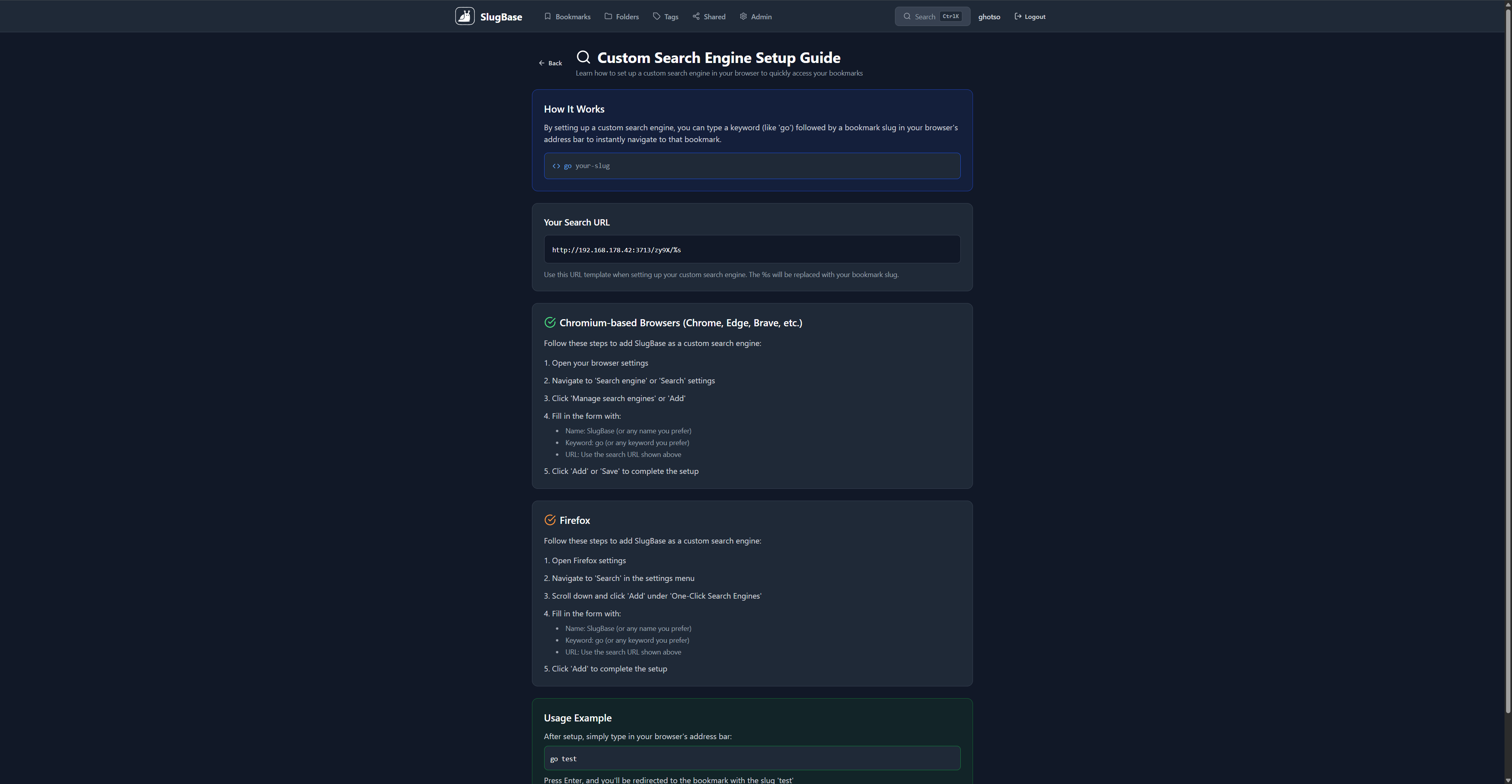
The Search Engine Guide page provides comprehensive instructions for setting up SlugBase as a custom search engine in various web browsers. This enables users to quickly access their bookmarks directly from the browser's address bar using a custom keyword and slug combination.
Route
- Path:
/search-engine-guide - Authentication: Required
- Access: All authenticated users
Features
Browser-Specific Instructions
The guide provides step-by-step instructions for:
- Chromium-based Browsers (Chrome, Edge, Brave, etc.)
- Firefox
Key Information Displayed
- How It Works: Explanation of the search engine concept
- Your Search URL: Personalized search URL template for the current user
- Step-by-Step Instructions: Detailed setup steps per browser
- Usage Example: Practical example of using the search engine
User Interface
Header Section
- Back Button: Returns to bookmarks page
- Title: "Custom Search Engine Setup Guide"
- Description: Brief explanation of the feature
Content Sections
-
How It Works
- Blue info box
- Explanation of the search engine concept
- Visual example:
go your-slug
-
Your Search URL
- White card with code display
- URL:
{BASE_URL}/go/%s(or{BASE_URL}/app/go/%sin CLOUD mode) - Note about
%splaceholder
-
Chromium-based Browsers
- Green checkmark icon
- Step-by-step instructions (5 steps)
- Sub-steps for form fields
-
Firefox
- Orange checkmark icon
- Step-by-step instructions (5 steps)
- Sub-steps for form fields
-
Usage Example
- Green info box
- Example:
go test - Explanation of what happens
User Interactions
Navigating to Guide
- From Bookmarks page, click "Learn how to set up a custom search engine" link
- Or navigate directly to
/search-engine-guide - Guide loads with personalized search URL
Setting Up Search Engine
- Read "How It Works" section
- Copy the personalized search URL
- Follow browser-specific instructions:
- Open browser settings
- Navigate to search engine settings
- Add custom search engine
- Fill in form with:
- Name: SlugBase (or preferred name)
- Keyword: go (or preferred keyword)
- URL: Use the provided search URL
- Test by typing
go {slug}in address bar
Returning to Bookmarks
- Click "Back" button in header
- Returns to Bookmarks page
Component Structure
<SearchEngineGuide>
  <Header>
    <Back Button>
    <Title>
    <Description>
  </Header>
  <How It Works Section>
    <Explanation>
    <Example>
  </How It Works>
  <Your Search URL Section>
    <Title>
    <Code Display>
    <Note>
  </Your Search URL>
  <Chromium Section>
    <Title>
    <Steps>
  </Chromium>
  <Firefox Section>
    <Title>
    <Steps>
  </Firefox>
  <Usage Example Section>
    <Title>
    <Example>
    <Explanation>
  </Usage Example>
</SearchEngineGuide>
Personalized Search URL
The search URL is dynamically generated based on:
- Base URL: Current application origin
- Base URL: Current application origin
- Placeholder:
%sfor the bookmark slug
Format: {BASE_URL}/go/%s (same for all users; login required)
Example: https://slugbase.example.com/go/%s
The %s is replaced by the browser with the search query (bookmark slug).
Browser Setup Instructions
Chromium-based Browsers
- Open browser settings
- Navigate to 'Search engine' or 'Search' settings
- Click 'Manage search engines' or 'Add'
- Fill in form:
- Name: SlugBase (or any name)
- Keyword: go (or any keyword)
- URL: Use the search URL shown above
- Click 'Add' or 'Save'
Firefox
- Open Firefox settings
- Navigate to 'Search' in settings menu
- Scroll down and click 'Add' under 'One-Click Search Engines'
- Fill in form:
- Name: SlugBase (or any name)
- Keyword: go (or any keyword)
- URL: Use the search URL shown above
- Click 'Add'
Usage Example
After setup, users can:
- Type in browser address bar:
go test - Press Enter
- Browser navigates to:
{BASE_URL}/go/test - SlugBase redirects to the bookmark URL associated with slug "test"
Note: Replace "test" with any bookmark slug created in SlugBase.
How It Works
The custom search engine feature works by:
- User types keyword + slug in address bar (e.g.,
go mylink) - Browser replaces keyword and query with search URL
- Browser navigates to:
{BASE_URL}/go/mylink - SlugBase backend receives request
- Backend looks up bookmark by slug (user identified by session)
- If found and forwarding enabled, redirects to bookmark URL
- User is taken directly to the target website
Benefits
- Quick Access: Access bookmarks without opening SlugBase
- Keyboard-First: No mouse required
- Universal: Works from any browser tab/window
- Customizable: Choose your own keyword
- Privacy: Bookmarks remain private, only you can access
Related Pages
Technical Details
- Component File:
frontend/src/pages/SearchEngineGuide.tsx - Authentication: Login required; resolution is per-user
- Dynamic URL: Generates search URL from current origin
- Routing: React Router for navigation
i18n Keys Used
searchEngineGuide.*- All guide-related stringscommon.back- Back button text
Styling
- Info Boxes: Color-coded sections (blue, green)
- Code Blocks: Monospace font, proper formatting
- Step Lists: Numbered lists for instructions
- Icons: Checkmarks and code icons for visual clarity
- Responsive: Mobile-friendly layout
- Dark Mode: Full dark/light mode support
Content Sections
How It Works
Explains the concept:
- Custom search engine setup
- Keyword + slug usage
- Browser integration
- Visual example
Your Search URL
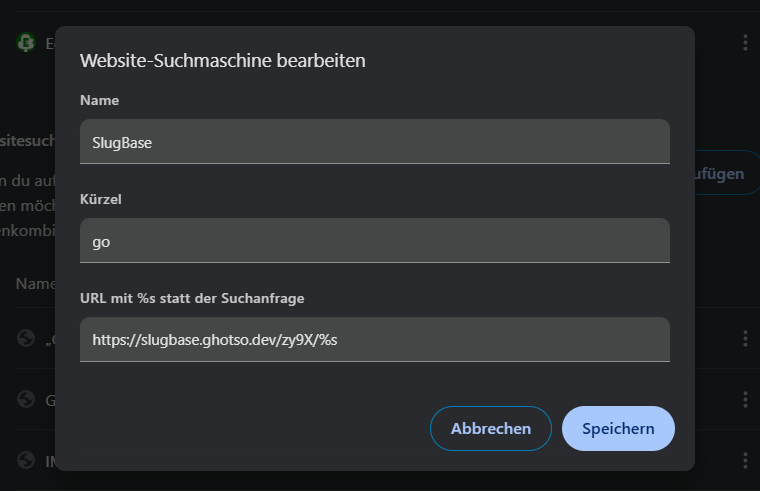
Shows personalized URL:
- User-specific URL template
- Code formatting
- Placeholder explanation
- Note about URL template usage
Browser Instructions
Step-by-step guides:
- Browser-specific navigation paths
- Form field instructions
- Screenshot descriptions (text-based)
- Completion confirmation
Usage Example
Practical demonstration:
- Example keyword usage
- Expected behavior
- Real-world scenario
- Tips for best experience
Best Practices
- Choose Memorable Keyword: Use short, easy-to-remember keyword
- Test Setup: Verify search engine works before relying on it
- Use Descriptive Slugs: Create meaningful bookmark slugs
- Keep Guide Handy: Reference if switching browsers
- Share with Team: Useful for team members (with their own URLs)
Troubleshooting
Search Engine Not Working
- Verify URL template is correct
- Check that bookmark slug exists
- Ensure forwarding is enabled on bookmark
- Verify keyword is typed correctly
URL Template Issues
- Ensure
%splaceholder is included - Ensure you are logged in
- Verify base URL is correct
- Test URL manually in browser
Browser-Specific Issues
- Different browsers may have slightly different UI
- Some browsers may require additional permissions
- Browser updates may change settings location
User Experience
- Clear Instructions: Step-by-step guidance
- Visual Examples: Code blocks and examples
- Browser Coverage: Instructions for major browsers
- Personalized: Shows user-specific URL
- Easy Navigation: Back button to return
- Comprehensive: Covers all necessary information
Accessibility
- Proper heading hierarchy
- Clear section organization
- Code blocks properly formatted
- Keyboard navigation support
- Screen reader friendly