Bookmarks Page
Overview
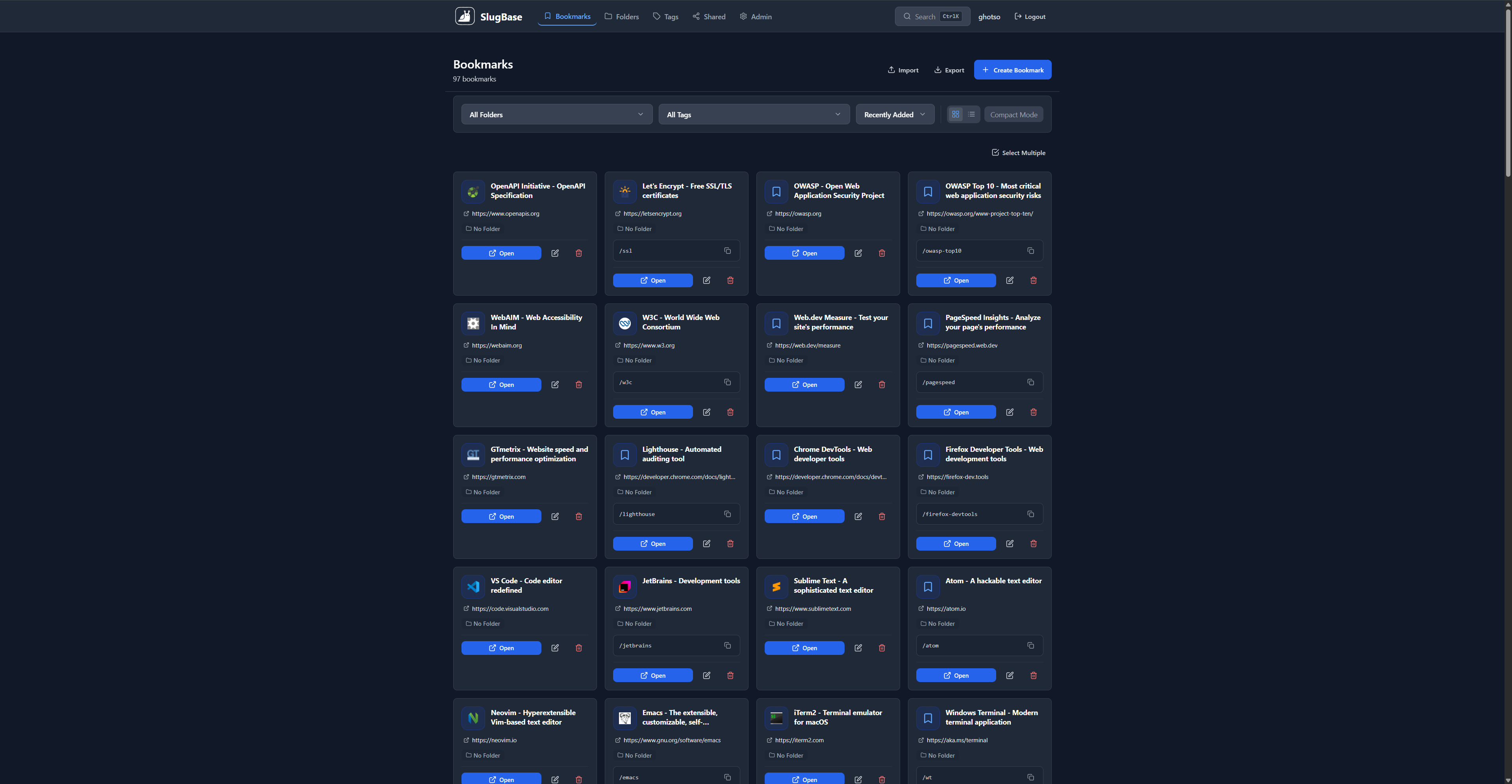
The Bookmarks page is the core of SlugBase, allowing users to create, view, edit, and manage their bookmarks. It features a modern card-based layout, filtering capabilities, and integration with folders and tags.
Route
- Path:
/bookmarks - Authentication: Required
- Access: All authenticated users
Features
Bookmark Management
- Create Bookmarks: Add new bookmarks with title, URL, optional slug, and forwarding
- AI Suggestions (optional): When enabled by admin, AI suggests title, tags, and slug as you enter a URL. Non-blocking; you can edit or ignore suggestions.
- Edit Bookmarks: Modify existing bookmarks
- Delete Bookmarks: Remove bookmarks (with confirmation)
- View Bookmarks: Display all bookmarks in a responsive grid or list view
- Bulk Actions: Select multiple bookmarks for bulk operations (move, tag, share, delete)
- Import/Export: Import bookmarks from JSON or export your bookmarks
- Pinned Bookmarks: Pin important bookmarks for quick access
View Modes
- Card View: Default grid layout with visual cards (1-6 columns based on screen size)
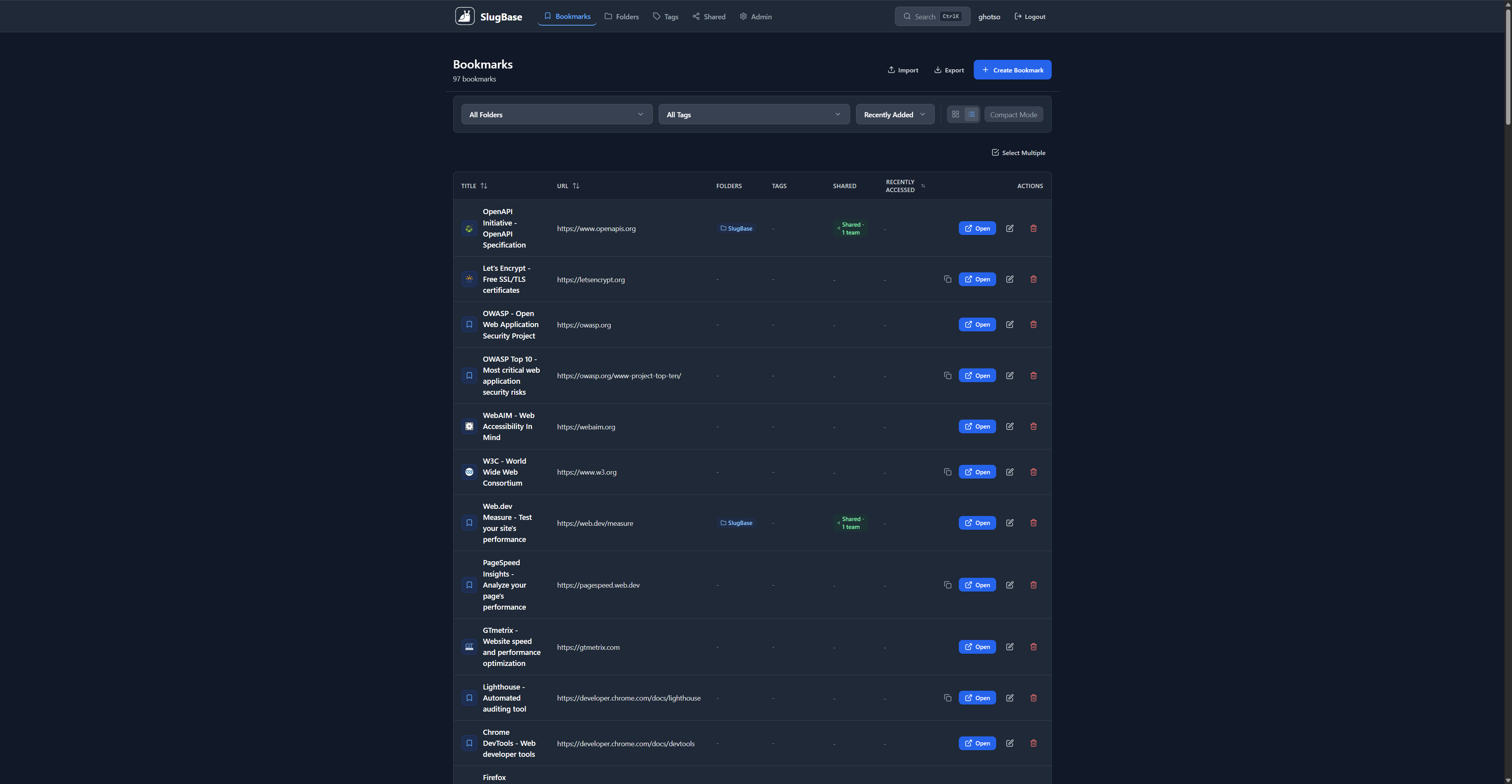
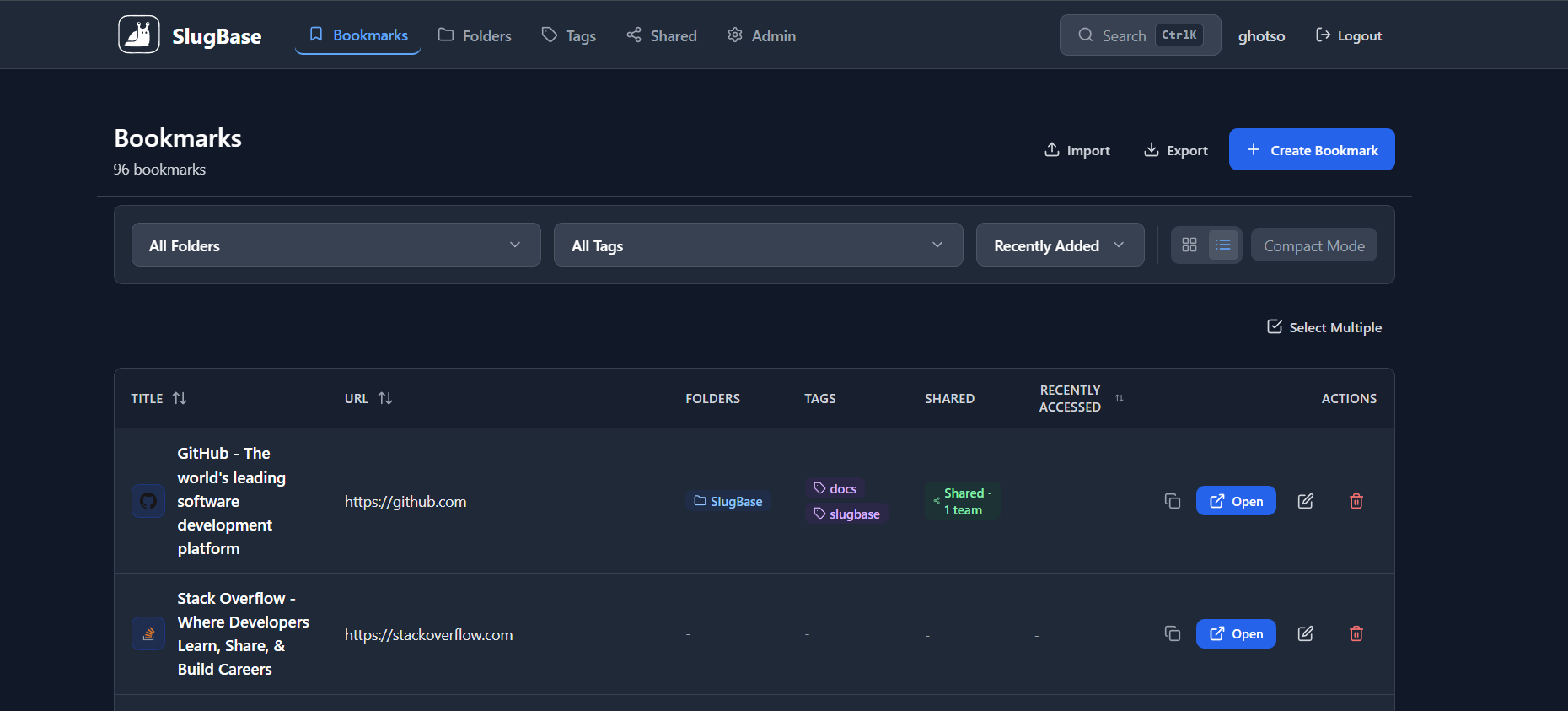
- List View: Compact table-like layout for power users
- Compact Mode: Reduced padding and font sizes for maximum density
- View Toggle: Switch between card and list views with toolbar buttons
- Preferences: View mode and compact mode preferences saved to localStorage
Filtering & Sorting

- Filter by Folder: Dropdown to filter bookmarks by folder
- Filter by Tag: Dropdown to filter bookmarks by tag
- Combined Filters: Both filters can be used simultaneously
- Reset Filters: Clear all active filters with one click
- Sort Options:
- Recently Added (default)
- Alphabetical (A-Z)
- Most Used (by access count)
- Recently Accessed
Global Search
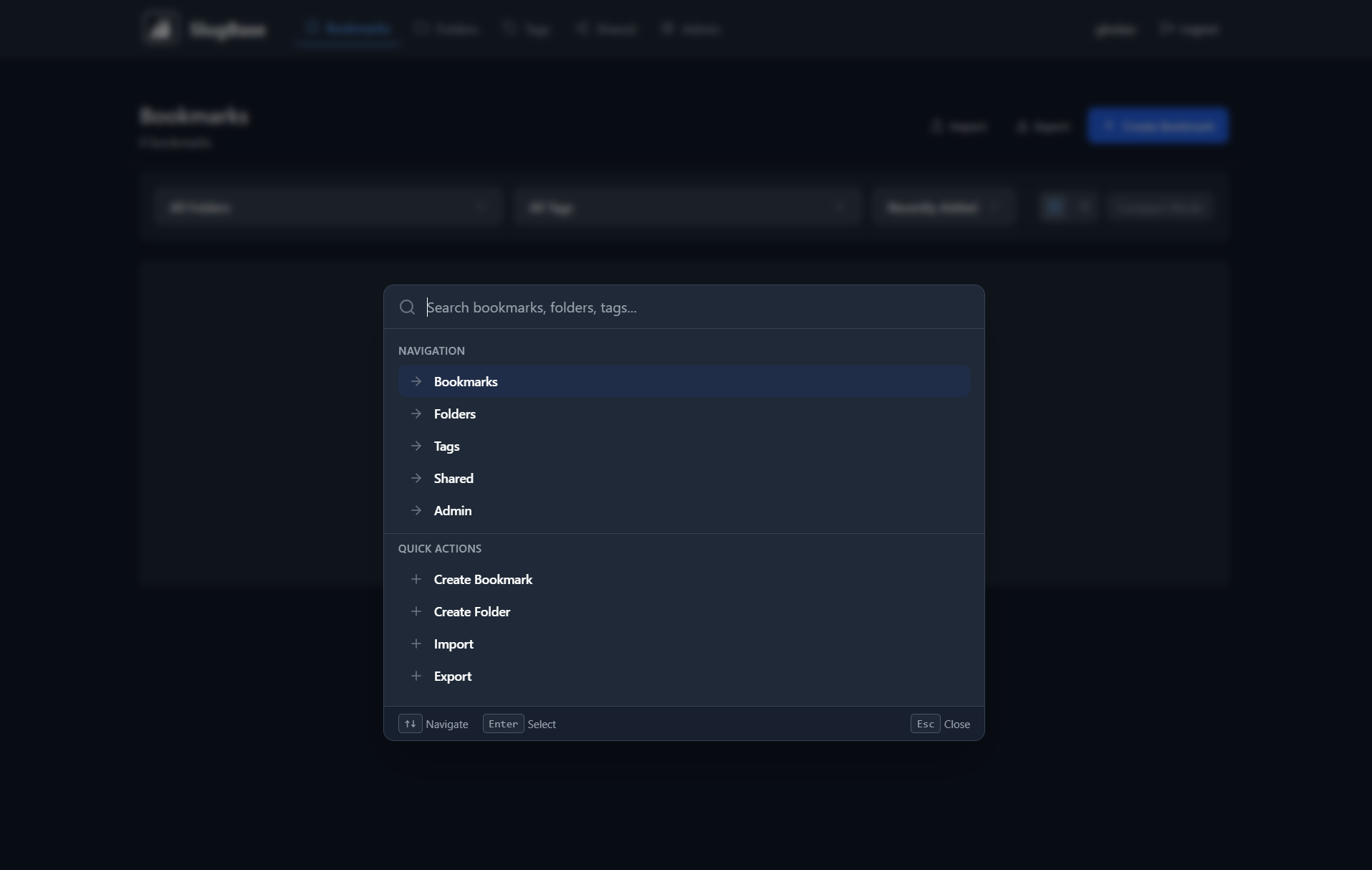
- Keyboard Shortcut: Press
Ctrl+K(orCmd+Kon Mac) from anywhere - Search Scope: Searches across bookmarks, folders, and tags
- Quick Navigation: Click results to navigate directly
- Search Bar: Available in the top navigation bar
Bookmark Cards
Each bookmark card displays:
-
Header Section
- Favicon (fetched from URL or fallback icon)
- Bookmark title (line-clamped to 2 lines)
- Shared Indicator: Shows "Shared · X teams" with detailed tooltip
- Selection checkbox (in bulk mode)
-
URL Display
- Truncated URL with external link icon
- Improved contrast for better readability
-
Metadata Tags
- Folder badges (up to 2 shown in card view, 1 in list view, with icon)
- Tag badges (up to 2 shown in card view, 3 in list view)
- Clickable folder badges to filter by folder
-
Forwarding URL (if enabled)
- Displays slug in format:
/{slug} - Copy button to copy forwarding URL
- Live preview in edit modal with copy functionality
- Displays slug in format:
-
Actions
- Open Button: Opens bookmark URL in new tab
- Edit Button: Opens edit modal (own bookmarks only)
- Delete Button: Deletes bookmark with confirmation showing bookmark name (own bookmarks only)
Card Design
- Modern rounded cards with hover effects
- Gradient icon backgrounds
- Consistent spacing and typography
- Dark/light mode support
- Responsive grid layout (1-6 columns in compact mode, 1-4 in normal mode)
- List view option for compact display
- Improved visual hierarchy with better contrast
User Interactions
Creating a Bookmark
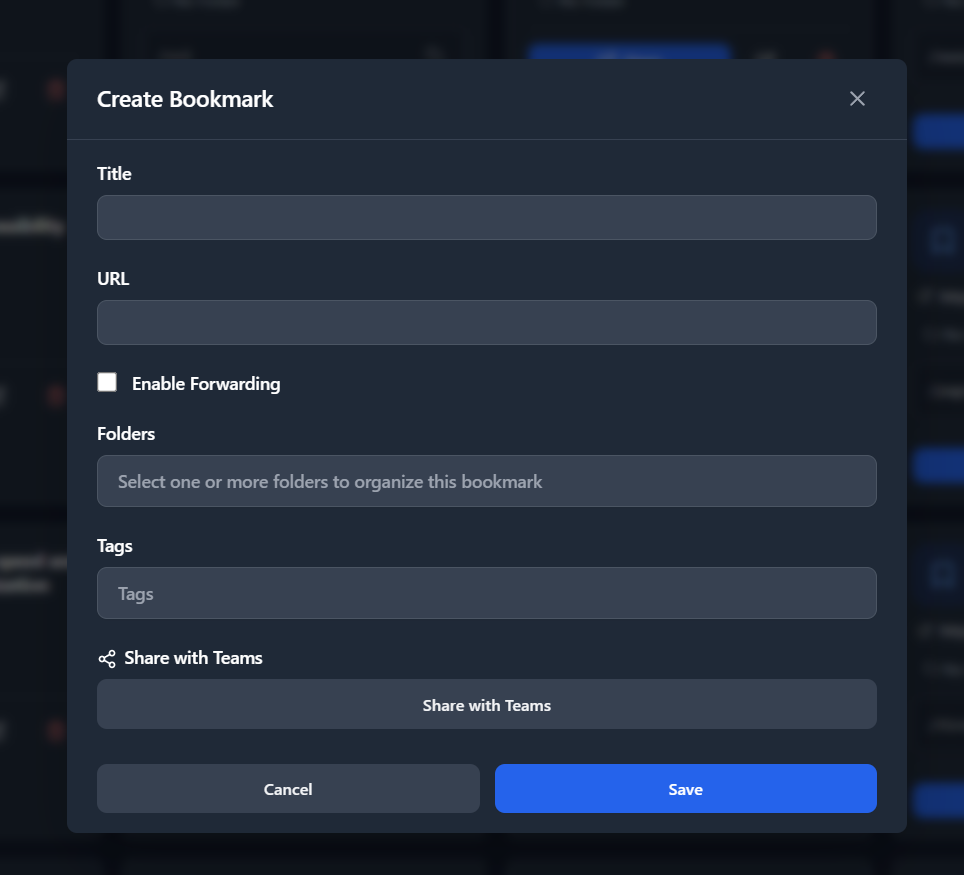
- Click "Create Bookmark" button (top-right)
- Fill in the bookmark modal:
- Title (required)
- URL (required)
- AI Suggestions (optional, when enabled by admin): When a valid URL is entered, AI may suggest title, tags, and slug after a short delay. Suggestions appear automatically; you can edit or ignore them. Bookmark creation never waits for AI.
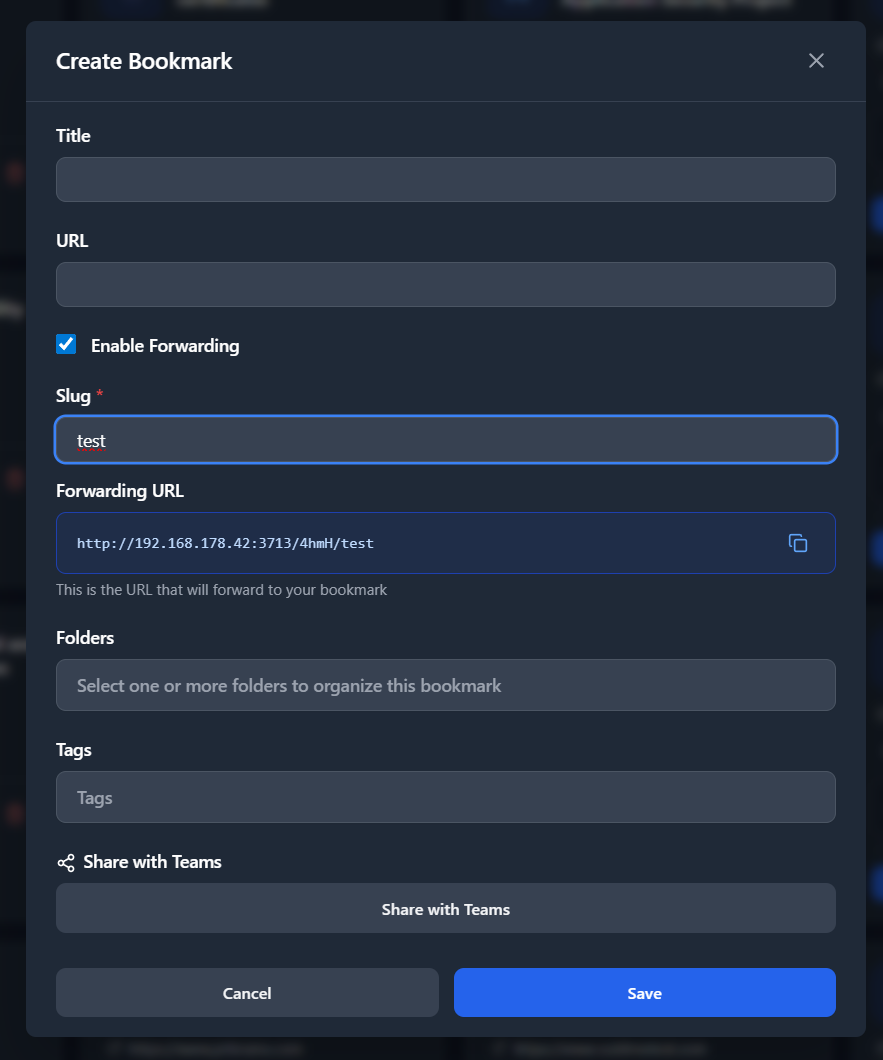
- Enable forwarding (optional) - Slug field appears only when forwarding is enabled
- Slug (required if forwarding enabled, optional otherwise)
- Live Preview: See forwarding URL preview with copy button when slug is entered
- Select folders (autocomplete multi-select with chips)
- Select tags (autocomplete multi-select, create tags inline)
- Share with teams/users (optional)
- Click "Save"
Editing a Bookmark
- Click the edit icon on a bookmark card (own bookmarks only)
- Modify fields in the modal
- Click "Save"
Deleting a Bookmark
- Click the delete icon on a bookmark card (own bookmarks only)
- Confirm deletion in the dialog
- Bookmark is permanently removed
Filtering Bookmarks
- Use "Filter by Folder" dropdown to select a folder
- Use "Filter by Tag" dropdown to select a tag
- Filters apply immediately
- Reset Filters button appears when filters are active
- Click "Reset Filters" to clear all filters at once
Sorting Bookmarks
- Use the "Sort By" dropdown in the toolbar
- Choose from:
- Recently Added (newest first)
- Alphabetical (A-Z)
- Most Used (by access count)
- Recently Accessed
- Sort applies immediately
Using Global Search
- Press
Ctrl+K(orCmd+Kon Mac) from anywhere - Type to search across bookmarks, folders, and tags
- Results appear in a modal overlay
- Click a result to:
- Open bookmark (if bookmark)
- Navigate to folder filter (if folder)
- Navigate to tag filter (if tag)
- Press
Escto close
Bulk Actions
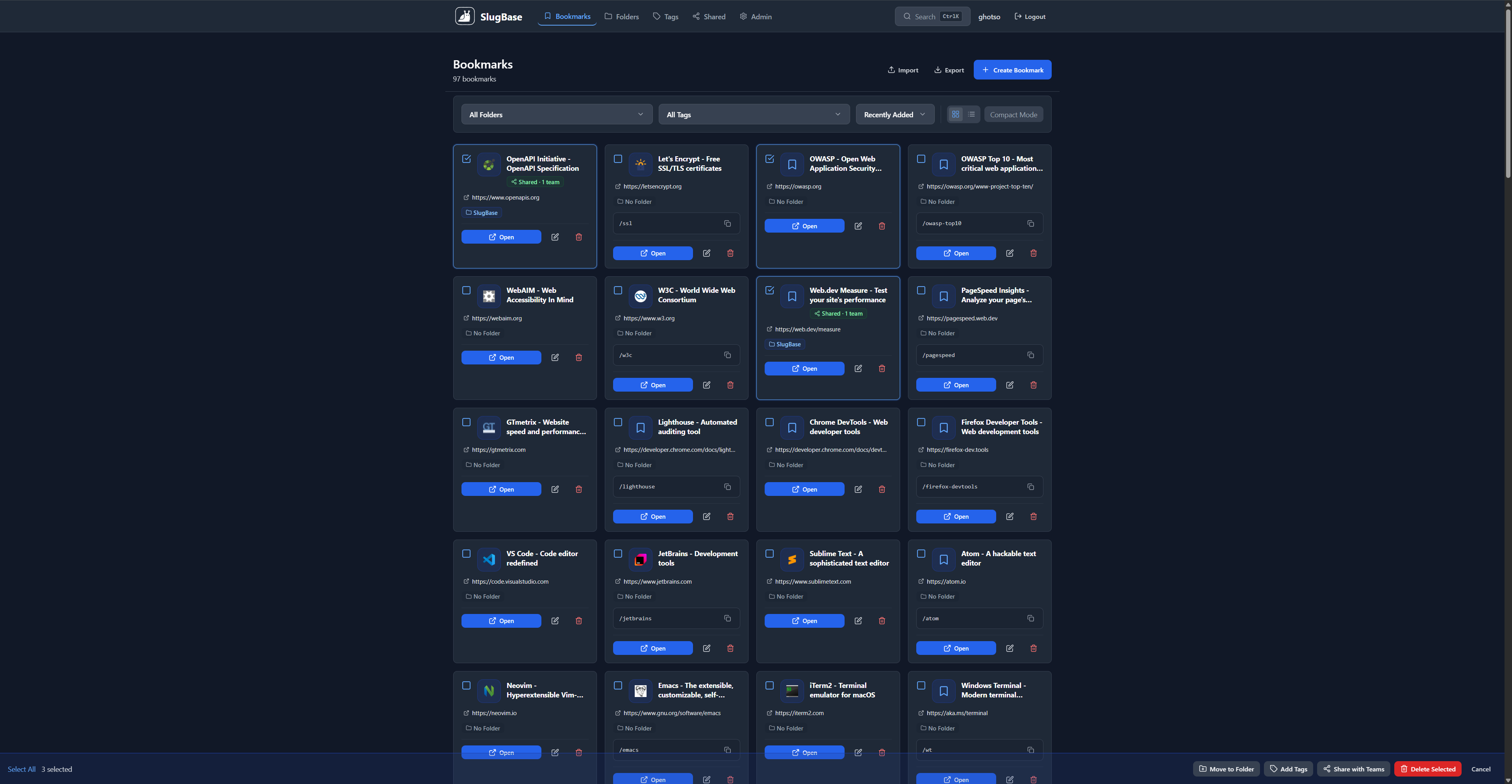
- Click "Select Multiple" button to enter bulk mode
- Select bookmarks using checkboxes
- Use bulk action buttons:
- Move to Folder: Assign selected bookmarks to folders
- Add Tags: Add tags to selected bookmarks
- Share with Teams: Share selected bookmarks
- Delete Selected: Remove selected bookmarks
- Click "Cancel" to exit bulk mode
Copying Forwarding URL
- If forwarding is enabled, click the copy icon next to the slug
- URL is copied to clipboard
- Toast notification confirms copy
Empty State
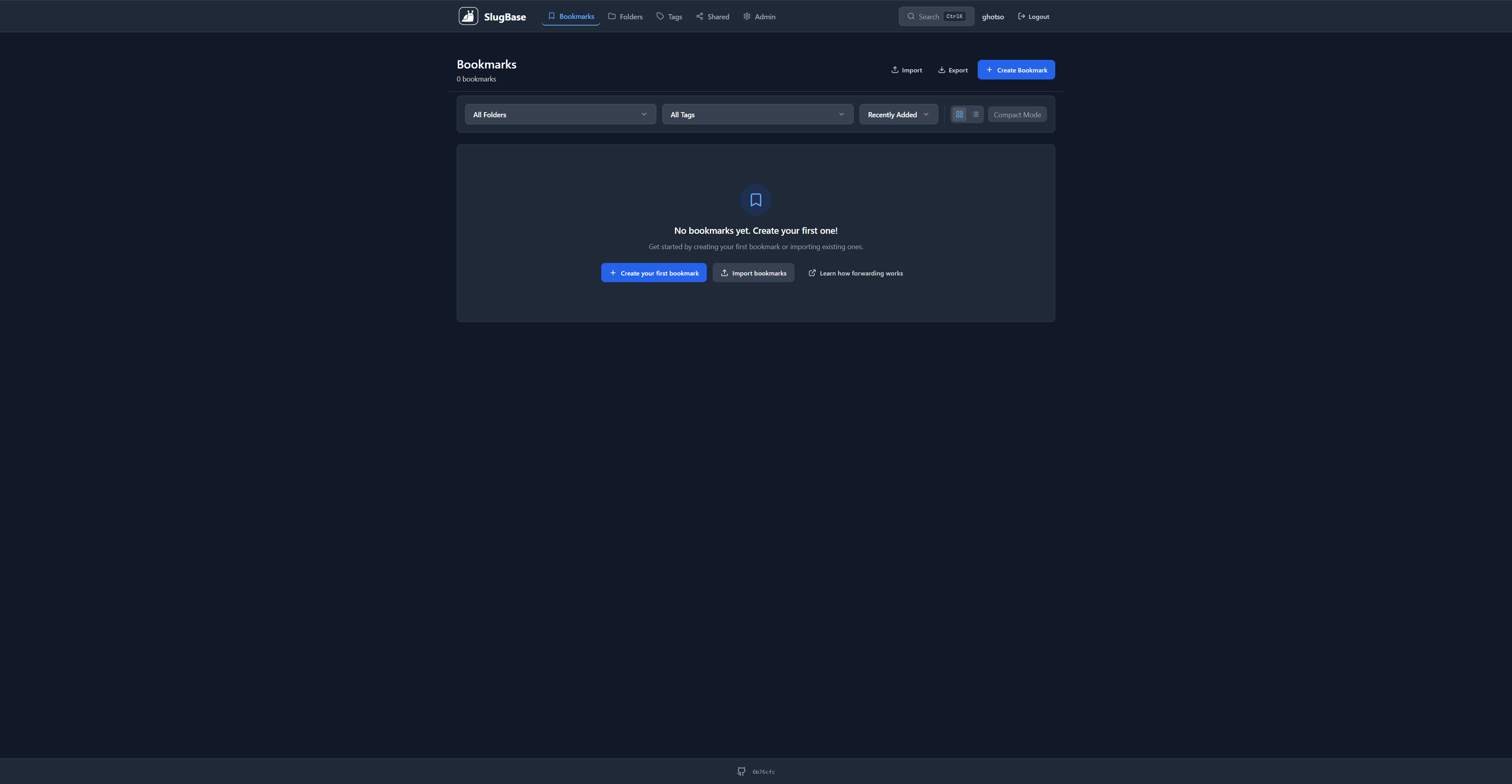
When no bookmarks exist or filters return no results:
- Displays icon and descriptive message
- Shows multiple action buttons:
- "Create your first bookmark"
- "Import bookmarks"
- "Learn how forwarding works" (links to guide)
- Clean, centered layout with helpful onboarding
Search Engine Guide Link
At the bottom of the page, a note section provides:
- Information about setting up custom search engines
- Link to the Search Engine Guide page
- Helps users access bookmarks quickly from browser address bar
Component Structure
<Bookmarks>
  <Header>
    <Title>
    <Count>
    <Import/Export Buttons>
    <Create Button>
  </Header>
  <Toolbar>
    <Filters>
      <Folder Filter>
      <Tag Filter>
      <Reset Filters Button>
    </Filters>
    <Sort Dropdown>
    <View Mode Toggle>
    <Compact Mode Toggle>
  </Toolbar>
  <Bulk Actions Bar> (when in bulk mode)
    <Select All/Deselect>
    <Bulk Action Buttons>
  </Bulk Actions Bar>
  <Bookmarks Display> (Card or List view)
    <Bookmark Card/ListItem>
      <Selection Checkbox> (bulk mode)
      <Favicon>
      <Title & Badges>
      <URL>
      <Metadata Tags>
      <Forwarding URL>
      <Actions>
    </Card/ListItem>
  </Bookmarks Display>
  <Empty State> (with onboarding CTAs)
  <Search Engine Note>
  <Bookmark Modal>
  <Bulk Modals> (Move, Tag, Share)
  <Confirm Dialog>
</Bookmarks>
API Integration
GET /bookmarks- Fetch bookmarks (with optional folder/tag filters and sort_by parameter)- Query params:
folder_id,tag_id,sort_by(recently_added, alphabetical, most_used, recently_accessed)
- Query params:
POST /bookmarks/ai-suggest- Get AI suggestions for title, slug, and tags (optional, when AI enabled). Body:{ url, page_title? }. Returns{ title, slug, tags, language, confidence }.GET /bookmarks/search- Global search across bookmarks, folders, and tags- Query param:
q(search query)
- Query param:
GET /bookmarks/export- Export all bookmarks as JSONPOST /bookmarks/import- Import bookmarks from JSON arrayGET /folders- Fetch folders for filter dropdownGET /tags- Fetch tags for filter dropdownGET /teams- Fetch teams for sharingPOST /bookmarks- Create new bookmark (supportspinnedfield)PUT /bookmarks/:id- Update bookmark (supportspinnedfield, bulk operations)DELETE /bookmarks/:id- Delete bookmark
New Bookmark Fields
pinned(boolean) - Pin bookmark for quick accessaccess_count(number) - Number of times bookmark was accessed via forwardinglast_accessed_at(timestamp) - Last time bookmark was accessed via forwarding
Styling
- Modern card design with rounded corners (
rounded-xl) - Gradient icon backgrounds
- Hover effects with border color change and shadow
- Consistent badge styling with borders
- Responsive grid:
- Normal mode:
grid-cols-1 sm:grid-cols-2 lg:grid-cols-3 xl:grid-cols-4 - Compact mode:
sm:grid-cols-3 lg:grid-cols-4 xl:grid-cols-5 2xl:grid-cols-6
- Normal mode:
- Spacing:
gap-4(normal),gap-2(compact) - Padding:
p-5(normal),p-3(compact) - Improved contrast for URLs and helper text
- Enhanced visual hierarchy
Related Components
BookmarkModal- Create/edit bookmark formFavicon- Displays bookmark faviconFolderIcon- Displays folder iconsConfirmDialog- Deletion confirmation
Related Pages
- Folders - Folder management
- Tags - Tag management
- Shared - Shared bookmarks view
- Search Engine Guide - Custom search engine setup
Technical Details
- Component File:
frontend/src/pages/Bookmarks.tsx - State Management: React hooks (
useState,useEffect) - Routing: React Router
- API Client: Custom API client with interceptors
- Toast Notifications: Custom toast system
- Icons: Lucide React
i18n Keys Used
bookmarks.*- All bookmark-related stringscommon.*- Common UI strings (loading, edit, delete, etc.)folders.*- Folder-related stringstags.*- Tag-related strings
Performance Considerations
- Bookmarks are loaded on component mount and when filters change
- Favicons are loaded lazily with error handling
- Grid layout optimizes for different screen sizes
- Efficient re-renders with React hooks
- Sorting and filtering handled client-side for instant feedback
- View mode preferences cached in localStorage
- Compact mode reduces DOM elements for better performance with large collections
New Features (v2.0)
View Modes & Density
- Card View: Visual grid layout (default)
- List View: Compact table-like layout
- Compact Mode: Reduced spacing and font sizes for power users
- Preferences saved to localStorage
Enhanced Search & Discovery
- Global Search:
Ctrl+K/Cmd+Kkeyboard shortcut - Search Bar: Always accessible in navigation
- Quick Navigation: Click results to jump directly to content
Advanced Filtering & Sorting
- Sort Options: Recently Added, Alphabetical, Most Used, Recently Accessed
- Reset Filters: One-click filter clearing
- Filter Persistence: Filters maintained in URL parameters
Bulk Operations
- Bulk Selection: Select multiple bookmarks with checkboxes
- Bulk Actions: Move to folder, add tags, share, or delete multiple bookmarks at once
- Select All/Deselect: Quick selection controls
Import & Export
- Export: Download all bookmarks as JSON
- Import: Bulk import bookmarks from JSON (coming soon: HTML/browser format)
Enhanced UX
- Improved Empty States: Onboarding with helpful CTAs
- Better Confirmations: Delete dialogs show resource names
- Enhanced Shared Indicators: Shows team count with detailed tooltips
- Live Preview: Forwarding URL preview with copy button in edit modal
- Autocomplete Folders: Multi-select chips for folder selection
- Inline Tag Creation: Create tags while typing
Usage Tracking
- Access Count: Automatic tracking of bookmark usage via forwarding
- Last Accessed: Timestamp of most recent access
- Sort by Usage: Find your most-used bookmarks quickly